
Showing posts with label debian. Show all posts
Showing posts with label debian. Show all posts
Mar 5, 2021


Feb 22, 2011
Discovering GIMP FX Foundry

For all these audience (but mostly the last), I think the GIMP FX Foundry is a pretty good collection of scripts - that will allow creation of fun effects and experiments (like the fx-foundry banner at the top of the article - which was made using the 'shrek-text' script).
How to install the FX-foundry scripts ? just download and extract the 100+ scripts in a temporary directory and move them into the gimp script folder - then launch gimp and voila!


A nice way to see what each script is doing is to open the FX-Foundry menu and let the cursor hover on top of the script's name, that will show a bubble with some explanations.
May 19, 2010
Inkscape - filters magic
Inkscape is an Open Source "Free graphics vector Editor" - that you can download and use under Windows, Linux and OS X.
It doesn't work like Photoshop or Gimp - but more like Illustrator, CorelDraw, or Xara X ; which mean you will deal with vectors instead of pixels.
The huge benefits of vector is that compared to pixels, when you zoom into the picture, it stays crisp - you won't get large square or stairs.
You draw shape, square, triangle, stars, and color them, use gradient, you can mimic 3D ... but when it comes to textures, and photo effect, usually people start to look at Photoshop (or Gimp) - while in fact Inkscape is perfectly capable of doing it too - have a look at the scenery below.
It's in fact very basic shape for the sky, 3 layers for the grass and the tree - where some filters were applied.


It doesn't work like Photoshop or Gimp - but more like Illustrator, CorelDraw, or Xara X ; which mean you will deal with vectors instead of pixels.
The huge benefits of vector is that compared to pixels, when you zoom into the picture, it stays crisp - you won't get large square or stairs.
You draw shape, square, triangle, stars, and color them, use gradient, you can mimic 3D ... but when it comes to textures, and photo effect, usually people start to look at Photoshop (or Gimp) - while in fact Inkscape is perfectly capable of doing it too - have a look at the scenery below.
It's in fact very basic shape for the sky, 3 layers for the grass and the tree - where some filters were applied.


Mar 15, 2010
How I made the switch to LinuxMint
How (and why) I switched to LinuxMint
My laptop with Debian/Lenny(stable) crashed again today - "X server" Failed with a weird error "xf86OpenConsole : Cannot open virtual console 8" :
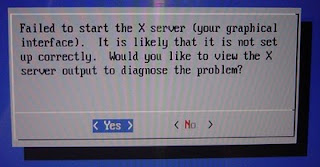


It happened to me already a few times before - causing loss of all the work I was currently doing (opened documents etc ...).
Today I wasn't happy either when it happened and didn't want to troubleshoot - and since I've been testing LinuxMint for some time ; I figured it was time to migrate from Debian/Lenny to LinuxMint/Helena
The trick was that I didn't know if I could do that with the data in place.
So first step was a complete backup of my /home folder on an external HD (just in case).
Then (as root) I renamed my home folder "/home/myMix" folder into "/home/myMix-Shared"
After that I was ready to boot on the LinuxMint liveCD (good surprise, even my wacom tablet was recognized)
then on the installation screen with the partition I selected "specify partitions manually (advanced)"

The partition dedicated for the system had to be formatted obviously
but the /home partition - I made sure that the format option stayed unticked


and then I launched the installation (keeping my fingers crossed)
My username under LinuxMint is still "myMix" (that's why I had to renamed my /home folder previously).

After the installation (around 30mn) I ejected the cd, rebooted and then logged on the LinuxMint
I had a look at the /home there was myMix and my the other folder but I had no permission to read or write, so I typed the following command :
cd /home
sudo chown -R myMix myMix-Shared
sudo chgrp -R myMix myMix-Shared
And that was it!
No data were lost, and now I just had to move each of my previous folder in their new /home/myMix
until the "myMix-Shared" was empty.
Kudos to the LinuxMint team, their distros is gorgeous - now I can enjoy tab in Nautilus and Gimp 2.6 among other goodies (like compiz).
My laptop with Debian/Lenny(stable) crashed again today - "X server" Failed with a weird error "xf86OpenConsole : Cannot open virtual console 8" :


It happened to me already a few times before - causing loss of all the work I was currently doing (opened documents etc ...).
Today I wasn't happy either when it happened and didn't want to troubleshoot - and since I've been testing LinuxMint for some time ; I figured it was time to migrate from Debian/Lenny to LinuxMint/Helena
The trick was that I didn't know if I could do that with the data in place.
So first step was a complete backup of my /home folder on an external HD (just in case).
Then (as root) I renamed my home folder "/home/myMix" folder into "/home/myMix-Shared"
After that I was ready to boot on the LinuxMint liveCD (good surprise, even my wacom tablet was recognized)
then on the installation screen with the partition I selected "specify partitions manually (advanced)"

The partition dedicated for the system had to be formatted obviously
but the /home partition - I made sure that the format option stayed unticked


and then I launched the installation (keeping my fingers crossed)
My username under LinuxMint is still "myMix" (that's why I had to renamed my /home folder previously).

After the installation (around 30mn) I ejected the cd, rebooted and then logged on the LinuxMint
I had a look at the /home there was myMix and my the other folder but I had no permission to read or write, so I typed the following command :
cd /home
sudo chown -R myMix myMix-Shared
sudo chgrp -R myMix myMix-Shared
And that was it!
No data were lost, and now I just had to move each of my previous folder in their new /home/myMix
until the "myMix-Shared" was empty.
Kudos to the LinuxMint team, their distros is gorgeous - now I can enjoy tab in Nautilus and Gimp 2.6 among other goodies (like compiz).
Jan 19, 2010
Google Picasa - Debian step by step install
After the Google Chrome - Debian step by step install - How about installing Picasa ?
it's even easier - because picasa is included in the google debian repository
step 1 : Add the Google repository in the sources.list file


it's even easier - because picasa is included in the google debian repository
step 1 : Add the Google repository in the sources.list file

http://dl.google.com/linux/deb/
Step 2 : select picasa package

Apply ...
That's it - done
Jan 18, 2010
Google Chrome - Debian step by step install
Chrome is available for Linux at http://chrome.google.com
there doesn't seems to be any official Debian "repository" yet to install it using synaptic (packet manager) - the installation has to be manual
1. need to download the package from this page below
Google Chrome - Get a fast new browser. For PC, Mac, and Linux

2. When on the desktop using xfe (file manager) and using the root user - you need to right click the package and choose install/upgrade

3. The package is then installed and will also appear in synaptic

That was easy!
there doesn't seems to be any official Debian "repository" yet to install it using synaptic (packet manager) - the installation has to be manual
1. need to download the package from this page below
Google Chrome - Get a fast new browser. For PC, Mac, and Linux

2. When on the desktop using xfe (file manager) and using the root user - you need to right click the package and choose install/upgrade

3. The package is then installed and will also appear in synaptic

Sep 10, 2009
Gimp: How to make a "Russian Propaganda Posters"
Nice tutorial, to get a "Russian Propaganda Poster" effect on your illustrations or photos with the Gimp (2.6) - only a dozen of steps to follow :
- Open photo (easy)
- duplicate layer your illustration (to keep an original)
- duplicate layer for each item you want to colorize
- convert to grey (color/desaturate)
- Use Color/Curves to get more contrast (need a bit of practice)
- convert to 3 colors (Posterize)
- Open custom palette with 4 colors (white, black, orange and red)
- select color grey - drag and drop orange
- select color black - drag and drop red
- same process with the different layers you created on step 3 ; so goto 4
- add some texts and export as png
See full episode here

For some real posters samples, here's a website where you can find lots of propaganda poster (beware the website looks is a bit ... how can I say that ... well, you'll see by yourself)

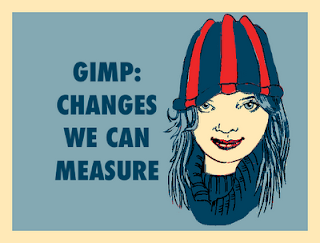
Applying the same process here's another attempt - that has nothing to do with "Russian Propaganda Posters" - it's just a figure of style.
Aug 18, 2009
Opera: upgrading to Opera 10.0 beta 3
That couldn't have been easier - see pictures below
saved the .deb file - then launch Xfe as root right clicked on the deb file then select "install/upgrade" - and that was it!


Opera: Opera 10.0 beta 3 for Linux changelog
saved the .deb file - then launch Xfe as root right clicked on the deb file then select "install/upgrade" - and that was it!


Opera: Opera 10.0 beta 3 for Linux changelog
Jul 15, 2009
celtx : Debian Installation

Interesting find, I was looking for some advices on how to write movie/comics script and then one thing leading to another I found Celtx
Celtx is a (brilliant) script editor or as they call it a "all-in-one media pre-production software" see the overview on Celtx website. Basically it make the whole writing process a lot easier since it will pre-format most of it for you (I especially like the creation of characters) - you just have to write and develop your ideas, the rest is done by Celtx - and when you're ready to publish you can export to html or pdf ...
The application is offered for Windows, Mac and Linux (kudos !)
Unfortunately there's no Debian package ready so it has to be done the old fashion way (uncompressed it and deploy) - but it's not too hard.
In only 4 steps :
- get the tar.bz2 (18MB) file here
- once it's on your desktop uncompress it
- then move it in your /usr/local/bin directory (using sudo mv or your favorite file browser running as root)
- then create an icon or link to "/usr/local/bin/celtx/celtx" which is the executable script
Jun 21, 2009
Installing Opera Unite under Debian
It's not exactly as friendly as the version 9.64 install ; (where everything could be done within synaptic) - but it's quite easy (took me 2 clicks)

And that was it !
- download the .deb file from http://snapshot.opera.com/unix/10-unite/intel-linux/
- launch Xfe as root then click Install/upgrade

And that was it !
May 13, 2009
Running tiddllyWiki with Opera on Linux platform
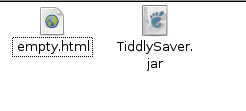
In order to run tiddlywiki on Opera you need 2 files the empty.html and the jar file:
But you also need to have java installed (see Enabling Java in Opera for Linux - Opera Knowledge Base)
if it's not there
and then you need to go into Opera / Tools / Advanced / Content and tick "Enable Java"
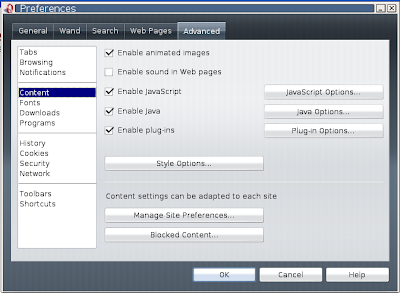
go into "Java option" and put the Java's path
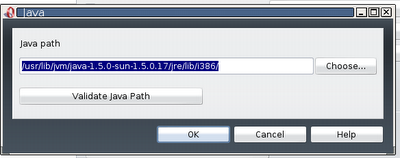
Then you need to quit + relaunch Opera, and load your local tiddlywiki
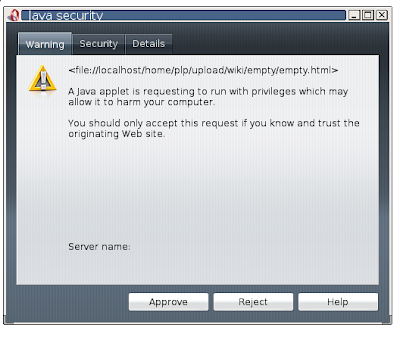
this message will appear just approve it - and it's done

But you also need to have java installed (see Enabling Java in Opera for Linux - Opera Knowledge Base)
sudo find / -name libjava.so /usr/lib/jvm/java-1.5.0-sun-1.5.0.17/jre/lib/i386/libjava.so
if it's not there
sudo apt-get install sun-java5-jre (1.5.0-17-0.1)
and then you need to go into Opera / Tools / Advanced / Content and tick "Enable Java"

go into "Java option" and put the Java's path

Then you need to quit + relaunch Opera, and load your local tiddlywiki

this message will appear just approve it - and it's done
May 6, 2009
Installing Opera Web Browser in Linux Debian

Lately I've tried the Opera web browser and as far as today for me it rocks under Windows - so I tried to install it on Linux Debian ; and went to the opera website, clicked the download link (image below).
But I had second thought since using synaptic "is like shopping on Amazon, with one click purchases" , ... after a bit of searching, I finally found this nice little article in Opera's documentation -
In conclusion actually just add this in the /etc/apt/sources.list
- deb http://deb.opera.com/opera/ stable non-free
- sudo apt-get update
- sudo apt-get install opera
and voila ... you're done with the clean installation of Opera in Debian.
Opera Web Browser | Faster & safer | Download the new Internet browsers freeFeb 24, 2009
Broken, Broken, Broken

I'm sure you know the old saying " if it ain't broke, don't fix it ! (or in my case don't update it)" and it happened again this week - I broke vlc - it used to work just fine until this last update (picture above).
Vlc to read flv, or mp4 or non free format depends on 2 libraries libavcodec and libavformat - they were working in version 0.svn20080206-15 but ... latest version is broken ... it was in fact documented on the debian-multimedia.org repository - too bad, I didn't read it ...
A fix is posted as well on the debian-multimedia.org but I can't figure this out
18/06/2008 :
Broken ffmpeg libraries :
Since Debian use the same soname packages name than my packages, official packages (vlc, totem, etc...) linked against libavc* doesn't work with my libavc* packages.
If you want to use vlc and friends you need to downgrade libavc* packages to the official packages.
Beware : downgrading to these packages will remove all debian-multimedia packages who depends on libavc*
To downgrade do the following :
dpkg -l | grep 3:2008
for each package echoed do :
apt-get install --reinstall
0.svn20080206-8 is the unstable version and 0.cvs20070307-6 for testing (check with apt-cache for the current version).
Mmmh, it has been broken since June 2008 ?!
sudo dpkg -l | grep 3:2008
libavcodec51 3:20080706-0.3 lib to enc/dec multimedia streams - runtime files
libavformat52 3:20080706-0.3 ffmpeg file format library
libavutil49 3:20080706-0.3 avutil shared libraries
libpostproc51 3:20080706-0.3 postproc shared libraries
Mmmh, okay ?!
in sources.list > deb http://www.debian-multimedia.org/ etch main
in synaptic > set prefer version from "oldstable"
sudo apt-get update
sudo apt-get install --reinstall libavcodec51=0.svn20080206-8
sudo apt-get install --reinstall libavformat52=0.svn20080206-8
sudo apt-get install --reinstall libavutil49=0.svn20080206-8
sudo apt-get install --reinstall libpostproc51=0.svn20080206-8
Mmmh - should work ?!
sudo apt-get install --reinstall libavcodec51=0.svn20080206-8
Reading package lists... Done
Building dependency tree
Reading state information... Done
E: Version '0.svn20080206-8' for 'libavcodec51' was not found
[...]
Naaaaah, also tried with =0.svn20080206-15 just in case ... same
Feb 19, 2009
PhotoBooth effects with the Gimp

Lately I tried to recreate the "stretch" effects you can achieve with the Apple PhotoBooth application (see link below).
Using the Gimp, it's actually quite easy to mimic this feature using Filter/Distort/iWarp
Here using Grow :

Here using Shrink :

Here using Move :

see Mac OS X 10.5 Help: About Photo Booth
and some examples of photo booth pictures here
Feb 12, 2009

Jan 30, 2009
Nautilus-action : Generating thumbnails script

Still in my quest to find a smart way to generates thumbnails from a selected pictures I stumble on this nautilus-action script
Make thumbnails from selected images | GrumZ.Net
And then I pushed it a little further (code below) so it creates a thumbnail sub-directory and add a little blur effect (previously discovered in a previous post) -
Enough talk > here's the code :
#!/bin/bash
# ===========================================
# Thumb_export.sh
# ===========================================
# Script called by nautilus-action
# This script can handle multiple selection
# from various directories
# ===========================================
# REP = current directory path
# THB = thumbnail path and filename
# THB_SIZE = size of the thumbnail
# ===========================================
# version 0.02a
# Fri 30 Jan 2009 04:22:32 PM CET
THB_SIZE="184"
for f in "$@"; do
# extracting the current directory and create a thumbnail sub directory
REP=`dirname "$f"`"/thumbnail"
if `test -d $REP`; then echo "thumbnail dir already exists"; else mkdir $REP; fi
THB=`echo $REP`"/`basename $f`"
# now generates the thumbnail with
convert $f -thumbnail $THB_SIZE \( +clone -blur 0x3 +level 20%,100% \) \
\( +clone -gamma 0 -shave 10x10 \
-bordercolor white -border 10x10 \) \
-composite \
\( +clone -gamma 0 -shave 10x10 \
-bordercolor white -border 1x1 \
-bordercolor black -border 9x9 \) \
-compose screen -composite \
$THB
done
xmessage "OK, it's done"
NB : I do not pretend to be a brilliant shell developer ; so be careful when using this code, the dozen of tests I performed with it (with multiple selection (across various directories), jpg, png, etc ...) worked, so I can say that nothing terrible (or funny) should happened.
But of course, if you're a shell wizard - I would totally appreciate your comment or help.
Jan 20, 2009
imagemagick script for thumbnails

Goodie, goodie - another try with imagemagick scripting - This time, the purpose is to generate thumbnail(s) with fixed width and with some little blur around the pictures ... just like the picture on the left.
Why ? because I'm using "phpwebgallery" and they recommend to generate the thumbnails externally before sending them over ftp to the website - to have the thumbnails in a sub-folder.
Anyway here's the script I made "export_thumb.sh"
#!/bin/sh
# export_thumb.sh
# ------------------------------------
# using imagemagick this script has to be launched from within
# the directory with your pictures (in jpg format) and it will
# exports thumb files 184 width in a sub directory named "thumb"
# create sub folder if it's not created already
if `test -d thumb`; then echo "thumb exists"; else mkdir thumb; fi
for i in *.jpg;
do
convert $i -thumbnail "184" \( +clone -blur 0x3 +level 20%,100% \) \
\( +clone -gamma 0 -shave 10x10 \
-bordercolor white -border 10x10 \) \
-composite \
\( +clone -gamma 0 -shave 10x10 \
-bordercolor white -border 1x1 \
-bordercolor black -border 9x9 \) \
-compose screen -composite \
thumb/$i
echo ".\c";
done
xmessage "OK ! script ended with Success";
There's a lot of other good examples on this page Thumbnails -- IM v6 Examples
Jan 14, 2009
SLiM - Simple Login Manager

Maybe I never mentioned it - but I'm using Linux Debian and most of the time through virtual machine (virtualbox or vmware) - anyway part of the fun of using vms is that you can test a lot of package - and in this quest the benefits is often to get the fastest, more efficient vm you can - with the fewer package ; so it runs smoothly and isn't fat in terms of ram or space.
Anyway, my current environment is icewm and I was struggling to find a login manager to get along with it - I wanted something not too fancy (like gdm or kdm that mostly are used in correlation with respectively gnome or kde) - so I tested xdm first and wasn't impressed (it was ugly) but then I was advised to install slim - and yes, it rocks, it's easy to configure and is only one package to install - so fast, efficient - I adopted it immediately, and made (as a practical joke) a "vista-like" login (see picture on the left).
SLiM - Simple Login Manager
Jan 8, 2009
FileManager using tags

Tagging, is it the future of the file manager specie ? I don't know ... But I know for sure that wasting time searching for a file is very frustrating - especially in the middle of a creation.
Of course using filenames with a limited number of characters was fine until the average HD size reached around 80GB. Now it's getting more and more tricky to organize a collection.
Let say you are trying to setup a collection of clip-arts :
usually you start with a simple structure like characters, sceneries, items.
But then you want to get in more details : face, signs, outline
and where do that fit ?
That's why (I guess) tagging is the best way to get organized (and that's probably the reason why openclipart.org is using tags too !).
And recently I found that dream tool ; it's named "tracker" - and after 3 days of testing I'm quite happy with it, because it is very intuitive, and offer a lot of flexibility in organizing a collections of pictures, textures, outline, portrait, black and white, cartoon, scenery etc ... The perfect companion for Inkscape.
Meta Tracker - tracker-project.org
Dec 19, 2008
Wacom : pressure sensitivity
 After modifying the /etc/X11/xorg.conf and rebooting there was no noticeable change in the wacom stylus behavior whether in Gimp or Inkscape ... I was confused - but then digging in both applications options I found that the mouse was still the selected input devices and so I just had to disable it and select the stylus and eraser and put them on Screen mode (see picture on the left) -- and it worked !
So now the last thing is to setup the eraser to actually erase ... ;)
configuration was LinuxMint 17
Subscribe to:
Posts (Atom)
Popular Posts
-
Assuming a table like this: create table test (id integer primary key autoincrement, name text); and values like: insert into test va...


